

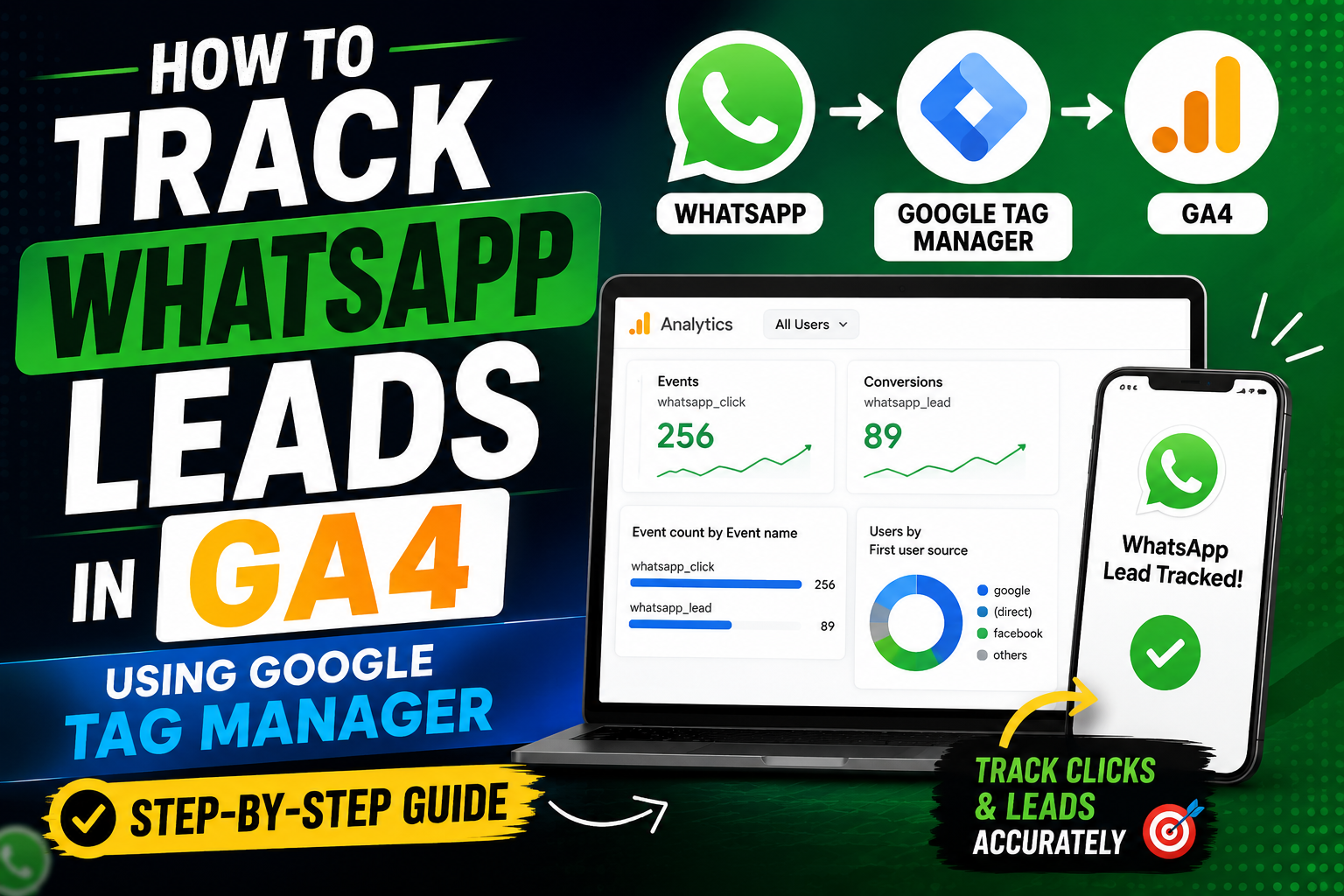
Why Most Businesses Have No Idea Where Their WhatsApp Leads Are Coming From
Here’s a scene I’ve watched play out with almost every service business client I’ve worked with. Someone runs Google Ads or Meta Ads, drives traffic to a landing page, and the Chat on WhatsApp button is sitting right there. Leads start coming in. The owner is happy.
Then someone asks the obvious question. Which campaign actually brought these leads?
Silence.
Nobody knows. The WhatsApp click just disappears into a black hole because it opens a new tab or app and GA4 never sees it as an event unless you tell it to. I’ve had clients spend real ad budget for months without a clue whether it was the Google Ads campaign, the Instagram reel, or plain word of mouth that got someone to click that green button WhatsApp Lead Tracking in GA4
That’s the gap this guide fixes. By the end of it, you’ll know exactly how to set up WhatsApp click tracking in GA4 using Google Tag Manager, so every lead has a source attached to it.
Table of Contents
ToggleQuick Answer WhatsApp Lead Tracking in GA4
To track WhatsApp leads in GA4, add a GTM trigger that fires when someone clicks your WhatsApp link (usually starting with wa.me or api.whatsapp.com), create a GA4 event tag tied to that trigger, and publish it. GA4 then logs each click as a custom event, letting you see which campaigns, ads, or pages actually generate WhatsApp conversations.
What Is WhatsApp Lead Tracking?
WhatsApp lead tracking simply means capturing the moment someone clicks your WhatsApp button or link on your website, and recording that click as a measurable event inside GA4.
By default, GA4 has no idea this happened. Clicking a WhatsApp link either opens WhatsApp Web in a new tab or launches the app on mobile. From Google’s point of view, the user just left your site. Without tracking set up, that click is invisible.
Say you run a hair studio website (this happens to be something I deal with a lot) and you’ve got a “Book Now on WhatsApp” button on your homepage and another one on your pricing page. Without tracking, you’ll never know which page actually convinces people to reach out. With tracking, you’ll see the exact page, and if you’re running ads, the exact campaign, that led to that WhatsApp click.
Why Is It Important?
If you’re spending money on ads and your main conversion point is WhatsApp (which is extremely common for salons, clinics, real estate, coaching businesses, and local services across India), not tracking these clicks means you’re flying blind.
A few real reasons this matters:
You can finally see which campaigns actually work. Not just which ones get clicks, but which ones get people to actually message you.You stop wasting ad spend.
If a campaign is generating traffic but zero WhatsApp clicks, that’s a sign something’s off with your offer, landing page, or targeting.
You get proper attribution for Google Ads bidding. Once WhatsApp clicks are set up as conversions in GA4 and imported into Google Ads, the algorithm starts optimizing toward people likely to actually message you, not just click your ad.
You can compare channels honestly. Is Instagram or Google Ads sending better quality leads? Without this data, that’s a guessing game.
I’ve had a client’s whole ad strategy shift once we could see this. Turned out their Google Search campaign was quietly outperforming their Meta campaign by almost three times on WhatsApp clicks, even though Meta had more overall traffic. That single insight changed where the budget went the next month.
Step by Step Process to Track WhatsApp Clicks in GA4 Using GTM
Step 1: Confirm Google Tag Manager and GA4 Are Connected
What It Means Before setting up any click tracking, GTM needs to be installed on your website and GA4 needs to be receiving data from it.
Why It Matters If GTM isn’t firing correctly on your site, none of the steps below will work, no matter how well you configure them.
How To Do It Go to Google Tag Manager, open your container, and check the Preview mode on your live site. If tags are firing when you load the page, you’re good. Then check GA4’s Realtime report to confirm data is coming in from that same site.
Example On a client’s salon website, we opened GTM Preview, loaded the homepage, and confirmed the GA4 Configuration tag fired immediately. Only then did we move forward.
Pro Tip Don’t skip this step even if you “installed GTM months ago.” Sites get redesigned, code gets removed by accident, and I’ve seen GTM containers sitting dead on a site for weeks without anyone noticing.
Step 2: Identify Your WhatsApp Link Pattern
What It Means WhatsApp links usually follow a pattern like https://wa.me/91XXXXXXXXXX or https://api.whatsapp.com/send?phone=91XXXXXXXXXX. You need to know which format your site uses.
Why It Matters GTM needs to recognize this exact pattern to trigger the tracking event only on WhatsApp clicks, not on every link on your page.
How To Do It Right click your WhatsApp button on the live site and select Inspect. Look at the href attribute in the code. Note whether it starts with wa.me or api.whatsapp.com.
Example A client’s booking button had href=”https://wa.me/919876543210?text=Hi%20I%20want%20to%20book%20an%20appointment”. That wa.me pattern became our trigger condition.
Pro Tip If your site has multiple WhatsApp buttons pointing to different numbers (say, one for each branch), you can still track them all under one trigger and split the data later using the link URL as a parameter.
Step 3: Create a Click Trigger in GTM
What It Means A trigger tells GTM when to fire a tag. Here, it fires whenever someone clicks a link containing your WhatsApp URL pattern.
Why It Matters This is the core mechanism that actually catches the click event.
How To Do It In GTM, go to Triggers, click New, choose Click, All Elements. Set it to fire on Some Clicks, and set the condition as Click URL contains wa.me (or api.whatsapp.com, depending on your link format). Name it something clear like “Click – WhatsApp Button.”
Example For the salon client, the trigger fired on Click URL contains wa.me, and we tested it in Preview mode by clicking the actual button on the site.
Pro Tip Turn on the built in Click URL, Click Text, and Click Classes variables in GTM before building this trigger. It makes debugging so much easier when you can see exactly what GTM is capturing.
Step 4: Build the GA4 Event Tag
What It Means This is the tag that actually sends the “WhatsApp click happened” event to your GA4 property.
Why It Matters The trigger catches the click, but the tag is what reports it to GA4 so it shows up in your data.
How To Do It Go to Tags, click New, choose GA4 Event as the tag type. Select your existing GA4 Configuration tag, name your event something like whatsapp_click, and attach it to the trigger you built in Step 3.
Example We named the event whatsapp_click and added the page URL and click text as event parameters, so we could later see which specific button on which page got clicked.
Pro Tip Keep your event name lowercase with underscores, like whatsapp_click, not WhatsApp Click. GA4 is picky about naming conventions and this keeps things consistent with its own reporting standards.
Step 5: Test Everything in Preview Mode
What It Means Before publishing anything live, you check whether the tag actually fires when you click the WhatsApp button.
Why It Matters Publishing untested tags is how you end up with weeks of missing or duplicate data. I’ve cleaned up messy GTM containers before and it’s not fun for anyone.
How To Do It Open GTM Preview mode, connect it to your site, click the WhatsApp button, and check the Tags panel to confirm your GA4 event tag fired. Then check GA4’s DebugView to see the event coming through in real time.
Example On the pricing page test, whatsapp_click showed up in DebugView within seconds of clicking, with the correct page URL attached.
Pro Tip Test on both desktop and mobile. WhatsApp links sometimes behave differently on mobile devices, especially with app deep linking, and that can occasionally interfere with how the click is registered.
Step 6: Publish the GTM Container
What It Means Once testing confirms everything works, you push the changes live so real visitors start generating data.
Why It Matters Nothing gets tracked until this is done. Preview mode data doesn’t count toward your actual GA4 reports.
How To Do It Click Submit in GTM, add a clear version name like “Added WhatsApp click tracking,” and publish.
Example After publishing for the salon client, we saw the first real whatsapp_click event in GA4 within an hour, coming from an organic Google search visit.
Pro Tip Always name your GTM versions properly. Six months from now, when something breaks, you’ll want to know exactly what changed and when.
Step 7: Mark the Event as a Conversion in GA4
What It Means By default, GA4 tracks the event but doesn’t treat it as a conversion goal unless you tell it to.
Why It Matters Marking it as a conversion lets you see it clearly in reports and, more importantly, lets you import it into Google Ads for bidding optimization.
How To Do It In GA4, go to Admin, then Events, find whatsapp_click, and toggle it as a key event (previously called conversion). If you’re running Google Ads, link your GA4 property and import this conversion.
Example Once marked as a key event, the client’s Google Ads account started showing WhatsApp clicks as conversions, and within a few weeks Smart Bidding started favoring the keywords driving actual conversations.
Pro Tip Give it a week or two of data before making major bidding decisions based on it. GA4 and Ads need enough volume to optimize properly.
Common Mistakes People Make With WhatsApp Tracking
Mistake: Using the wrong Click URL condition Impact: The trigger never fires, or fires on completely unrelated links. Solution: Double check your exact WhatsApp link format using Inspect Element before setting the trigger condition.
Mistake: Forgetting to test in Preview mode Impact: You publish a broken setup and lose weeks of data without realizing it. Solution: Always test and confirm the event fires in GTM Preview and GA4 DebugView before publishing.
Mistake: Not marking the event as a key event Impact: The data sits in GA4 but never gets imported into Google Ads, so your bidding never improves. Solution: Go to Admin and Events and mark whatsapp_click as a key event.
Mistake: Tracking only one WhatsApp button when the site has several Impact: You get an incomplete picture of which buttons or pages drive the most engagement. Solution: Use a broader trigger condition like Click URL contains wa.me so it catches every instance, and use page URL as a parameter to break it down later.
Mistake: Confusing WhatsApp clicks with actual conversations Impact: You start assuming every click is a real lead when some people click and never message. Solution: Treat WhatsApp clicks as a strong intent signal, not a guaranteed lead. Combine this data with actual inq
Best Practices for Accurate WhatsApp Tracking
Keep your event naming consistent across every site you manage. If you handle multiple client accounts, standardizing on whatsapp_click everywhere saves confusion later.
Add UTM parameters to your ad campaigns so that once someone clicks WhatsApp, you already know which specific ad or post brought them to the page in the first place.
Review your GA4 Explore reports monthly to compare which pages and campaigns generate the highest WhatsApp click rate, not just the highest traffic.
Set up a Look Studio (Google’s renamed version of Data Studio) dashboard pulling this data automatically, so you’re not logging into GA4 every time a client asks for numbers.
Cross check GA4 click data against your actual WhatsApp Business inbox occasionally. It keeps your reporting honest and helps you catch tracking issues early.
Tools and Resources
| Tool | Purpose | Free or Paid |
|---|---|---|
| Google Tag Manager | Creates and manages tracking tags without touching site code | Free |
| Google Analytics 4 | Collects and reports on WhatsApp click events | Free |
| GTM Preview Mode | Tests tags before publishing | Free, built into GTM |
| GA4 DebugView | Confirms events are firing correctly in real time | Free, built into GA4 |
| Looker Studio | Builds shareable dashboards from GA4 data | Free |
| WhatsApp Business App | Confirms actual conversation volume against click data | Free |
Real Life Example
Situation A hair studio client running Google Ads and Instagram promotions had no idea which channel was actually driving bookings through WhatsApp.
Challenge Ad spend was split roughly evenly between Google and Meta, but there was no data showing which one led to actual client conversations.
Action We set up GTM triggers for the WhatsApp button on every key page, built the GA4 event tag, tested it thoroughly, and marked it as a key event connected to Google Ads.
Result Within a month, the data showed Google Search campaigns were producing WhatsApp clicks at nearly triple the rate of the Meta campaigns, despite Meta getting more raw traffic. We shifted about sixty percent of the budget toward Search, and total WhatsApp inquiries went up while overall ad spend stayed the same.
Expert Tips
If you manage several client sites, build a reusable GTM template with the WhatsApp trigger and tag already configured, so you’re not rebuilding it from scratch every time.
Segment your WhatsApp click data by device. Mobile and desktop behavior can differ quite a bit, especially since mobile users often go straight into the WhatsApp app.
If a page has multiple WhatsApp buttons (like a floating chat icon plus a footer link), add the Click Text or Click Classes variable to your event so you know exactly which button people are using more.
Combine WhatsApp click tracking with scroll depth or time on page triggers occasionally. It helps you understand if people are actually reading your offer before clicking, or just bouncing straight to WhatsApp out of habit.
Frequently Asked Questions
Does GA4 track WhatsApp clicks automatically?
No. GA4 does not track WhatsApp link clicks by default. You need to set up a custom event through Google Tag Manager to capture this data.
What is the correct WhatsApp link format for GTM tracking?
Most WhatsApp links use either wa.me/yournumber or api.whatsapp.com/send?phone=yournumber. Check your site’s actual button code to confirm which format you’re using.
Can I track WhatsApp clicks without coding?
Yes. Google Tag Manager lets you set this up entirely through its interface without touching your website’s source code.
How long does it take to set up WhatsApp tracking in GTM?
For someone familiar with GTM, it typically takes fifteen to twenty minutes to build, test, and publish the trigger and tag.
Should I mark WhatsApp clicks as a conversion in GA4?
Yes, especially if you’re running paid ads. Marking it as a key event allows the data to be imported into Google Ads for better bid optimization.
Why isn't my WhatsApp click tracking showing data in GA4?
Usually it’s either an incorrect trigger condition, the container not being published, or the tag not being linked to the right GA4 configuration. Check GTM Preview mode and GA4 DebugView to troubleshoot.
Can I track WhatsApp clicks for multiple buttons on the same page?
Yes. A single trigger set to Click URL contains wa.me will catch every WhatsApp link on the page, and you can differentiate them using click text or page URL parameters.
Does this work for both website and app based WhatsApp links?
This guide covers website tracking through GTM. App based interactions require separate tracking through Firebase or app analytics tools.
Is WhatsApp click tracking accurate for measuring actual leads?
It measures intent very well, since someone clicking to open WhatsApp is a strong signal. It doesn’t confirm they actually sent a message, so pairing it with your WhatsApp Business inbox data gives the full picture.
Can I import WhatsApp click data into Google Ads for Smart Bidding?
Yes, once you mark the event as a key event in GA4 and link your Google Ads account, the conversion data becomes available for import and bidding optimization.
Key Takeaways
GA4 does not track WhatsApp clicks unless you set it up manually through Google Tag Manager.
The core setup involves a Click URL trigger for your WhatsApp link pattern and a GA4 event tag connected to it.
Always test in Preview mode and DebugView before publishing changes live.
Marking the event as a key event lets you import it into Google Ads for smarter bidding.
Combine click data with your actual WhatsApp inbox numbers for the most honest read on lead quality.
Conclusion
WhatsApp has become the main way a lot of local businesses actually close leads, especially in service industries like salons, clinics, and consultancies. But if you can’t see which campaign or page is driving those clicks, you’re essentially running your ad budget on guesswork.
Setting this up properly in GTM and GA4 takes maybe twenty minutes once you know the steps. What you get back is real clarity on where your best leads are actually coming from, and that changes how you spend money going forward.
Take the Next Step
If you’ve been running ads without this kind of tracking in place, it’s worth setting it up this week rather than letting more data slip through the cracks. Once it’s live, give it a couple of weeks to collect data, then sit down and actually look at which campaigns are earning real WhatsApp conversations. That one report alone tends to change how people think about their ad spend.