

The problem nobody talks about
Ask any small business owner what conversion tracking means and you’ll get a blank stare. Ask a marketer and you’ll probably get a sigh.
For years, setting up proper tracking meant touching code, understanding data layers, and hoping the developer didn’t break something while updating the website. I’ve lost count of how many client accounts I’ve opened only to find broken conversion tags sitting there for months, quietly wasting ad budget.
Google just announced a change that could actually fix a chunk of this mess. On August 20, 2026, Google rolled out an update that brings Google tag and Google Tag Manager closer together, and adds a no-code way to track events. If you manage ads, GA4, or even just a business website, this one’s worth understanding properly Google Tag Manager no-code event tracking
Table of Contents
ToggleWhat this update actually is
Here’s the short version. Google is merging the infrastructure behind Google tag and Google Tag Manager, so that any website currently running just a basic Google tag automatically gets access to full Tag Manager capabilities. Think interface-based tagging, debugging tools, version control, the works.
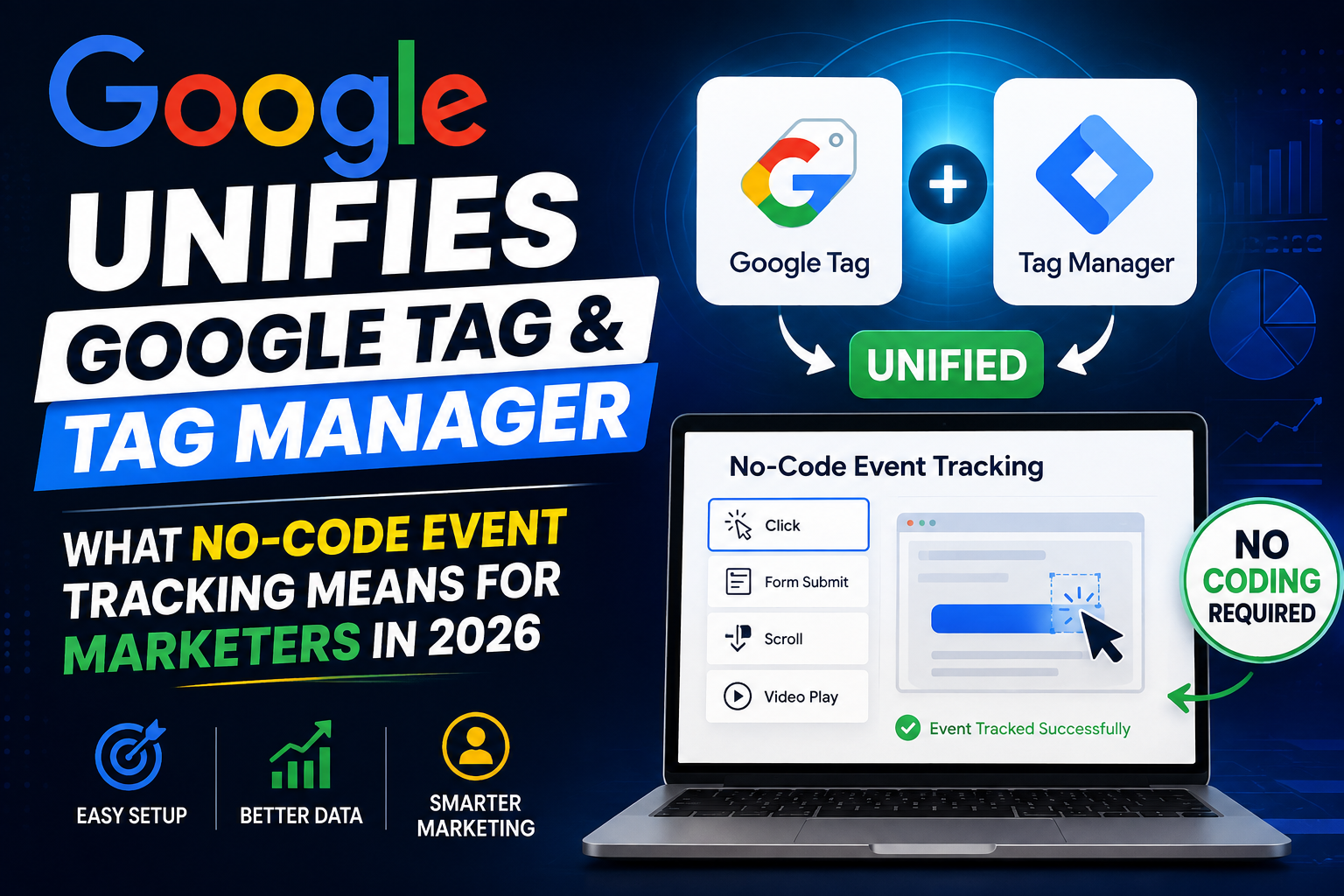
Alongside that, there’s a new no-code visual tagging system. Instead of writing triggers and variables, you can literally click through a purchase flow on your own website the way a customer would, and Google sets up the tracking behind the scenes.
It’s still early. The visual tagging piece is in beta right now, focused on purchase conversions inside Google Ads, and Google says it’ll expand through the rest of the year.
Quick answer Google Tag Manager no-code event tracking
Google unified Google tag and Google Tag Manager on August 20, 2026, upgrading standard Google tags into full Tag Manager containers automatically. The update adds no-code visual tagging for setting up conversions by clicking through a website like a customer, a data flow map showing where tracking data goes, and an in-account optimization banner to upgrade existing containers without breaking current setups.
What is the Google tag and Tag Manager unification, really
Let’s break this into plain language, because Google’s own documentation reads like it was written for developers first and marketers second.
Google tag is the small piece of code (often called gtag.js) that sends data to Google products like Google Ads and GA4. It’s lightweight and works fine for basic tracking.
Google Tag Manager is the fuller toolkit. It’s what most agencies use because it lets you add, edit, or remove tracking tags through a dashboard, without a developer touching the site every time.
Until now, these were somewhat separate systems living side by side. A lot of small business sites only had a Google tag installed, with none of the flexibility that comes with a full GTM container.
With this update, that gap closes. Existing Google tags get upgraded into proper GTM containers, and Google has confirmed this won’t change how the tag currently behaves on the live site. Nothing breaks on day one. Nothing happens automatically either, you choose when to optimize the container.
A real example. Say you’re running a salon website with just a basic Google tag tracking page views. Under the new system, that same tag can be upgraded to a full container, and suddenly you can add click tracking, form submissions, and scroll tracking through a dashboard instead of asking someone to edit the site code.
Why this actually matters for marketers
I’ll be honest, most Google announcements get filed under interesting, not urgent.” This one’s different, and here’s why.
It removes the biggest barrier small businesses face with tracking. Most of my clients here in Vizag and Hyderabad run tight teams. There’s no in house developer to babysit tracking code. When something breaks, it stays broken until someone notices the ad numbers look off.
It reduces the fragmented tagging mess. When Google tag and Tag Manager run separately, a site often ends up loading extra scripts it doesn’t need. Fewer moving parts usually means faster load times, which Google itself has flagged as a benefit of the new architecture.
It closes the gap between technical and non-technical marketers. No-code visual tagging means a shop owner or a junior marketer can set up a “purchase completed” event by physically walking through the checkout, rather than learning what a data layer variable is.
It gives a clearer view of where your data actually goes. The new data flow map shows exactly which Google destinations, Ads, Analytics, or otherwise, are receiving your tracking data. Anyone who has spent an afternoon trying to figure out why GA4 numbers don’t match Google Ads numbers will appreciate this.
The complete guide to adapting to the new tagging system
Step 1: Check what you’re currently running
What it means: Before touching anything, find out if your site has a standalone Google tag or a full Tag Manager container already.
Why it matters: The upgrade path is different depending on your starting point, and you don’t want to make changes blind.
How to do it: Log into your Google Tag Manager or Google Ads account and check the tagging setup under the admin settings. If you see a container ID starting with GTM, you already have Tag Manager. If you only see a gtag.js snippet, you’re on standalone Google tag.
Example: A client of mine running a small hair studio site had only a Google Ads conversion tag pasted directly into the header. No GTM container at all. That’s exactly the setup Google is targeting with this upgrade.
Pro tip: Don’t assume your developer set this up correctly two years ago. Website platforms change, plugins get added and removed, and tags get duplicated more often than you’d think.
Step 2: Look for the optimization banner
What it means: Google is rolling out an in-account banner inside Tag Manager that prompts you to upgrade your existing container to the new unified structure.
Why it matters: This is the safest, Google-approved way to move your setup forward without manually rebuilding anything.
How to do it: Open your GTM account and watch for the banner. When it appears, you’ll be able to preview every change before it goes live on your workspace.
Example: Instead of guessing what will change, you get a before and after view. That preview step alone will save a lot of agencies from those “why did conversions drop overnight” panic messages.
Pro tip: Never publish changes on a Friday evening or right before a big campaign launch. Give yourself a full business day to monitor numbers after any tagging change.
Step 3: Try the no-code visual tagging for purchase events
What it means: For purchase conversions in Google Ads, you can now click through your own site’s checkout flow and let Google configure the event automatically.
Why it matters: This removes the need to manually define triggers, variables, and data layer pushes for one of the most important events on any ecommerce or booking site.
How to do it: Inside the unified tagging interface, select the visual tagging option and walk through your purchase or booking flow as a test user would.
Example: For a client selling hair care products online, this could mean setting up “add to cart” and “purchase complete” tracking without a single line of code, something that used to take a developer an hour or more to configure correctly.
Pro tip: Test this on a staging version of the site first if you have one. Beta features can behave differently across website builders and themes.
Step 4: Use the data flow map to audit your tracking
What it means: The new map view shows which Google destinations are receiving data from your container, all in one place.
Why it matters: This is the fastest way to spot a tag that’s still sending data to an old, unused Ads account, or one that’s missing a destination entirely.
How to do it: Open the Settings tab inside your upgraded container and review the destinations listed against what you expect to see.
Example: I’ve seen accounts still sending conversion data to a Google Ads account that hasn’t run a campaign in over a year. That’s wasted setup, and sometimes it’s quietly skewing reported numbers elsewhere.
Pro tip: Do this audit every quarter, not just once. Accounts change, campaigns end, and old tags rarely get cleaned up on their own.
Step 5: Keep your legacy setup if you’re not ready
What it means: Nothing about this update forces immediate change. You can keep your existing configuration exactly as it is.
Why it matters: If your current tracking is working fine and you don’t have the bandwidth to test something new mid campaign, there’s no penalty for waiting.
How to do it: Simply don’t click the optimization banner yet. Your current setup continues functioning as before.
Example: An agency running a major festive season campaign might reasonably decide to wait until after the campaign wraps before touching anything tagging related.
Pro tip: Set a calendar reminder to revisit this in a month or two. “Later” has a way of becoming “never” if you don’t schedule it.
Common mistakes marketers make with tag management
Mistake: Assuming the upgrade happens automatically. Impact: Some marketers will wait for changes to “just apply” and miss the actual optimization window. Solution: Actively check your GTM account for the banner instead of waiting for a notification email.
Mistake: Not testing after any tagging change. Impact: A broken purchase event can go unnoticed for weeks, quietly making campaigns look like they’re underperforming. Solution: Always run a test transaction or test event immediately after publishing any tag change, unified system or not.
Mistake: Treating Tag Manager as a set it and forget it tool. Impact: Old tags pile up, page load times get affected, and nobody remembers why a tag exists six months later. Solution: Schedule a recurring tag audit, even a basic quarterly review makes a real difference.
Mistake: Ignoring the data flow map once it’s available. Impact: You miss discrepancies between platforms until a client asks why the numbers don’t match. Solution: Make reviewing the data flow map part of your monthly reporting routine.
Best practices going forward
Keep your container organized with clear naming conventions, future you will thank present you.
Don’t rush to adopt every beta feature the day it drops, especially on client sites with live campaigns running.
Document every tag you add and why it exists. It sounds tedious until you’re the one trying to figure out someone else’s mess a year later.
Run a monthly check comparing GA4 and Google Ads numbers against what Tag Manager reports, small mismatches often point to bigger issues.
Train at least one non-technical team member on the basics of the no-code tagging interface. It reduces bottlenecks when the person who “knows tagging” is on leave.
Tools and Resources
| Tool | Best For | Coding Required |
|---|---|---|
| Google Tag Manager (unified) | Full tag management across Google and third party destinations | Minimal to none with visual tagging |
| Google tag (gtag.js) | Basic, lightweight tracking for smaller sites | Some, until upgraded |
| GA4 Debug View | Verifying events fire correctly in real time | None |
| Tag Assistant | Checking tag health and troubleshooting errors | None |
| Server side tagging in GTM | Faster load times, better data accuracy, added privacy | Moderate technical setup |
A real example from working with local businesses
Situation: A hair studio client in Hyderabad had a Google Ads campaign running for months with a conversion tag that was technically live but never properly verified.
Challenge: The reported cost per booking looked unusually high, and nobody could tell if the ad spend was actually driving appointments or if the tracking was simply broken.
Action: We checked the setup, found the tag was only capturing page views instead of actual booking form submissions, then rebuilt it properly inside Tag Manager with a tested “form submit” trigger.
Result: Within two weeks, reported bookings nearly doubled, not because more people were booking, but because the tracking finally reflected what was actually happening. This is exactly the kind of setup error the new no-code visual tagging is designed to prevent from the start.
Expert tips for getting the most out of this update
Don’t treat the optimization banner as optional busywork. The preview feature before publishing is genuinely useful, use it to catch issues before they hit live traffic.
If you manage multiple client accounts, prioritize upgrading the ones with the highest ad spend first. That’s where tracking errors cost the most money.
Pair the new visual tagging with a manual spot check. Automation handles the setup, but a human eye catches context Google’s system might miss, like a checkout flow with an unusual extra step.
Watch for how this affects server side tagging setups if you’re already running them, since Google has said the architecture change should help with data accuracy and site speed on that front too.
Frequently Asked Questions
What is the Google tag and Tag Manager unification?
It’s an update from Google, rolled out August 20, 2026, that merges the underlying infrastructure of Google tag and Google Tag Manager so standalone Google tags gain full Tag Manager capabilities.
Will this change break my current tracking setup?
No. Google has confirmed existing Google tags will continue behaving exactly as they do now unless you actively choose to upgrade the container.
Do I have to upgrade my Google tag right away?
No, the upgrade is optional. You’ll see an optimization banner in your Tag Manager account when it’s available, and you decide when, or if, to use it.
What is no-code visual tagging in Google Tag Manager?
It’s a feature that lets you set up conversion events by clicking through your website like an actual customer, while Google configures the technical triggers and variables automatically.
Is the no-code tagging feature available for all events?
Not yet. It’s currently in beta and focused on purchase conversions inside Google Ads, with Google planning to expand it to more use cases over time.
What happens to my existing Google Ads and GA4 tags after the upgrade?
Each Google destination keeps its own individual tag. The upgrade only changes how these are managed and organized, not the tags themselves.
How do I know which Google destinations my data is going to?
The new data flow map inside the Settings tab shows every connected destination in one place, making it easier to spot missing or outdated connections.
Does this update affect page load speed?
Google says the unified architecture can improve site performance since Tag Manager containers can send data directly to destinations, reducing redundant scripts.
Is this update relevant for small business websites, not just big agencies?
Yes, arguably more so. Small business sites are the ones most likely running a bare Google tag with no Tag Manager setup, which is exactly what this update targets.
Where can I check if my account has received the optimization banner?
Log into your Google Tag Manager account and check your container dashboard. Google is rolling this out progressively, so not every account will see it on the same day.
Key Takeaways
- Google merged Google tag and Tag Manager infrastructure on August 20, 2026
- Standalone Google tags can now be upgraded into full Tag Manager containers
- No-code visual tagging lets you set up purchase conversions by clicking through your site
- Existing setups won’t change automatically, upgrades are opt in
- A new data flow map shows exactly where your tracking data is going
- This update mainly helps smaller businesses and non-technical marketers who’ve struggled with manual tag setup
Wrapping this up
Tracking has always been the unglamorous part of digital marketing. Nobody gets excited about tags and triggers, but bad tracking quietly costs businesses real money every single day through wasted ad spend and decisions made on faulty data.
This update won’t fix every tracking problem out there. But it does lower the barrier for a lot of small businesses who’ve been running blind for years simply because proper tag setup felt too technical to bother with.
If you’ve been putting off cleaning up your tracking setup, this is a fairly good nudge to finally do it.
What to do next
Log into your Google Tag Manager account this week and check your current setup. If you spot the optimization banner, don’t ignore it, at least review what it’s offering.
If tagging and tracking feel like too much to manage on top of running your business, that’s exactly the kind of thing an agency handles day to day. Getting your conversion tracking right the first time saves you months of guessing whether your ads are actually working.